Logo to 3D Model for Your Next Scene

Turn your existing artwork into dimensional geometry you can download. Refine its depth and edges, choose a surface, and export a file for the next step in your 3D workflow.

Loading logo studio…

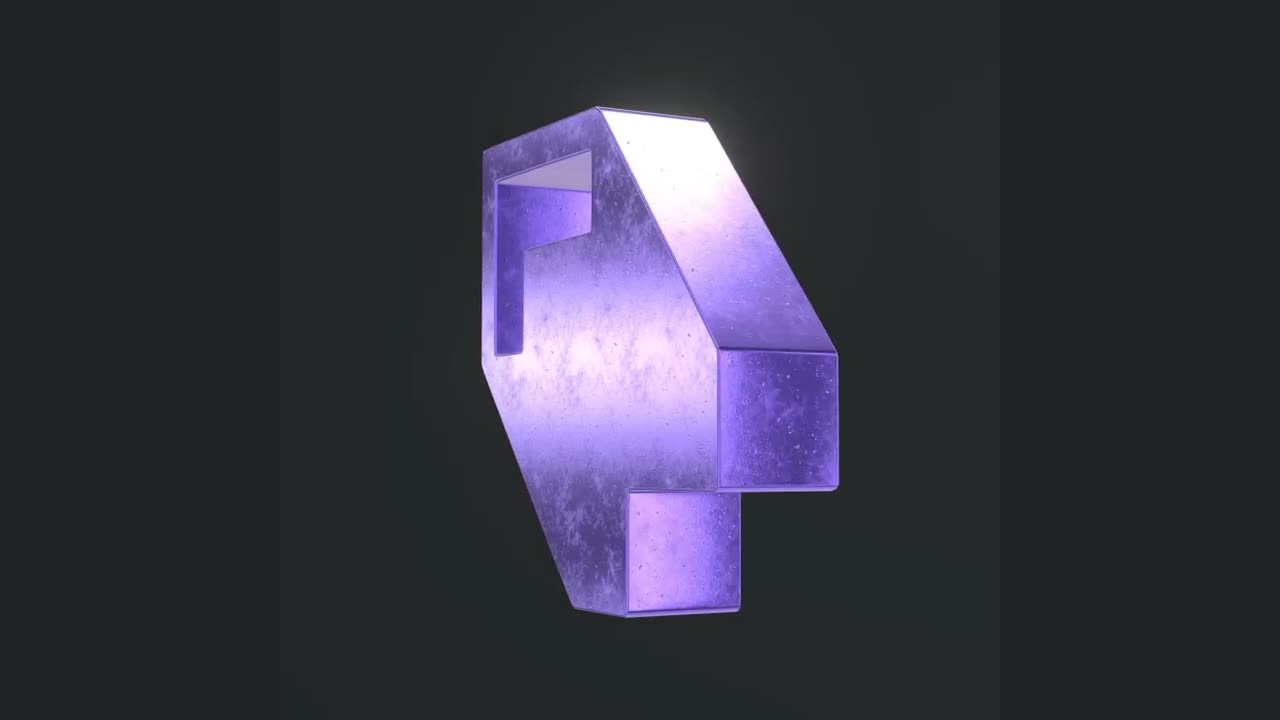
See Your Logo to 3D Model Transformation

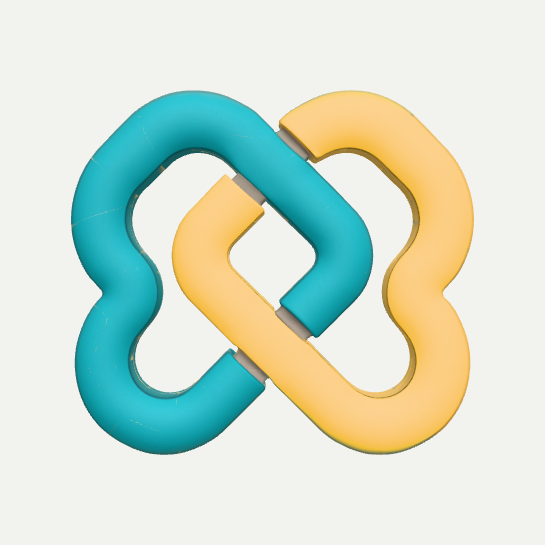
Compare the flat interlocking emblem with a dimensional interpretation, then drag the model to inspect its depth and silhouette. Use your own artwork in the logo to 3D model editor to prepare an extruded asset for another scene.

Flat artwork
Flat teal and gold interlocking emblem on a dark background
Interactive 3D example
Dimensional interlocking emblem that can be rotated to inspect its surfaces

Go From Logo to 3D Model in Three Steps

Build Your Logo Model

Add Your Existing Artwork

Upload an SVG, PNG, JPEG or WebP under 4 MB. A simple, distinct silhouette gives the logo to 3D model process a clearer outline.

Shape and Inspect the Geometry

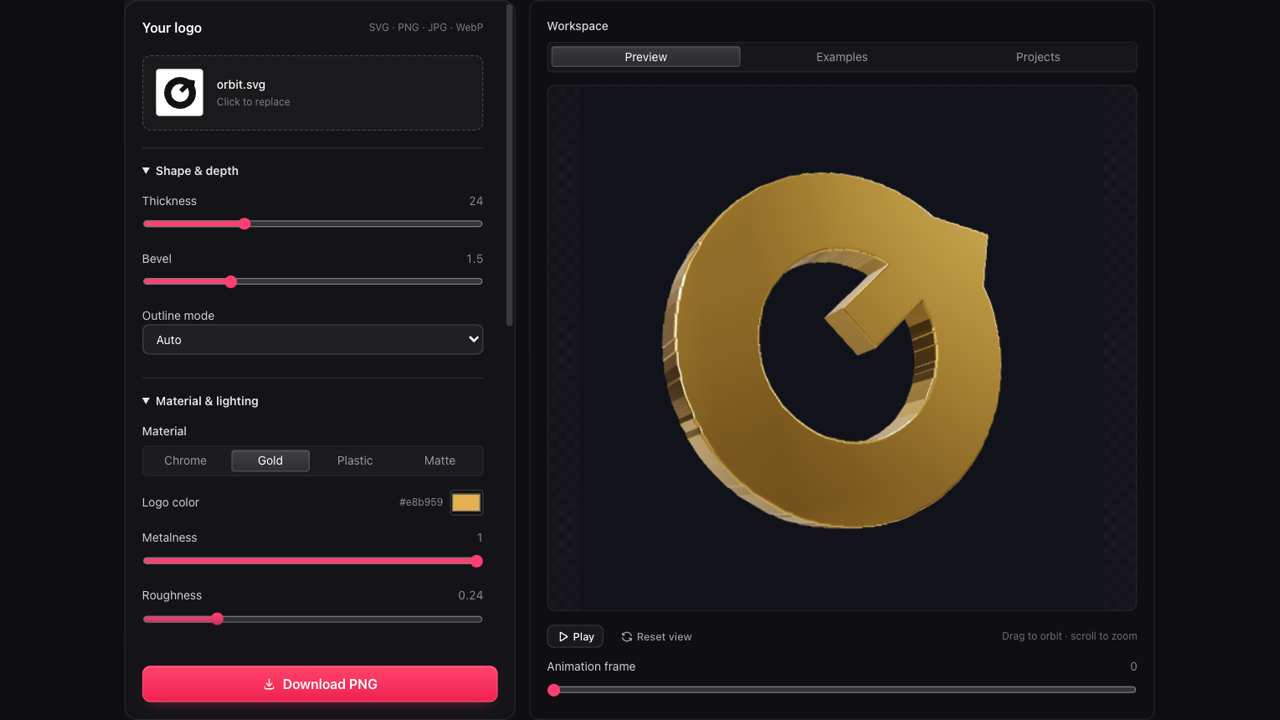
Set thickness, bevel and model width, then turn the preview. Check small gaps and curves before taking the logo to 3D model export.

Choose Your Download Format

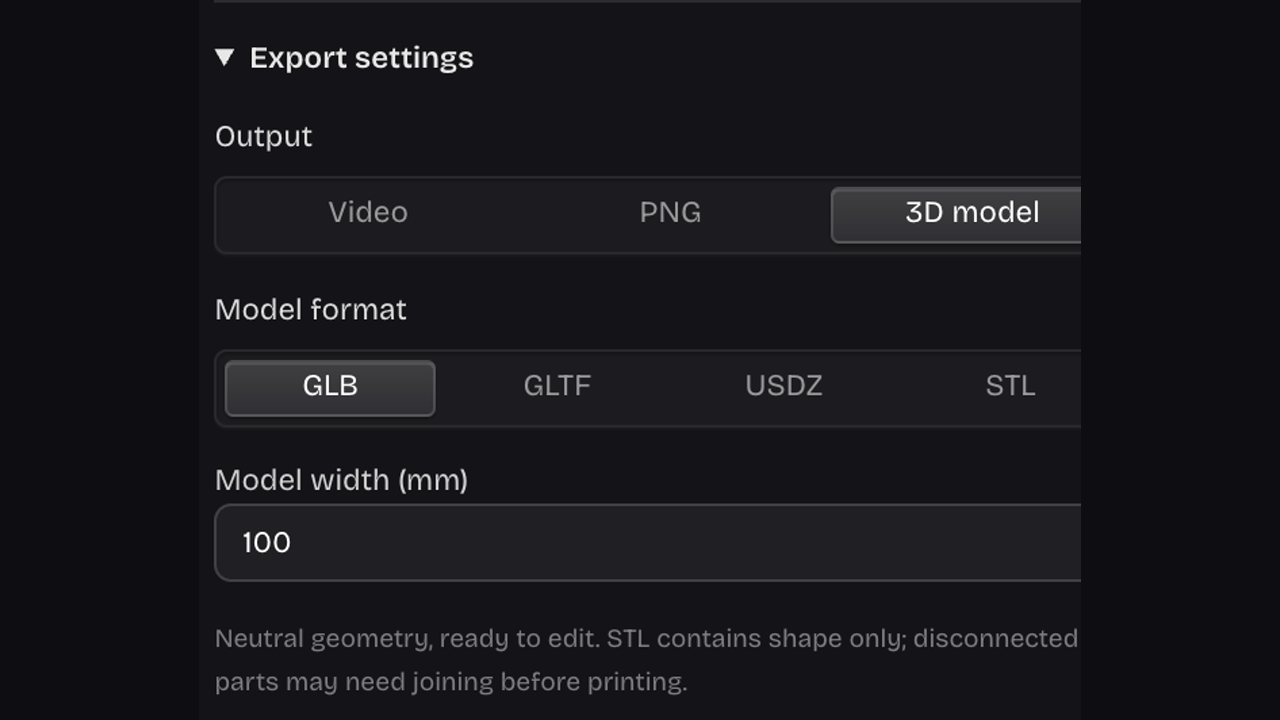
With Pro, export GLB, GLTF, USDZ or STL according to the receiving application. Reopen the file there to check its scale, appearance and placement in context.

Guide Your Logo to 3D Model Export

Logo model workspace with geometry controls beside a three dimensional preview

Create a 3D Model From a Logo You Know

Keep your source identity at the center of the process. The workspace traces its outline and lets you adjust depth and edge treatment while inspecting the dimensional form from the camera view you choose.

Open the Model Editor

Dimensional gold W emblem presented as a separate solid brand asset

Bring a Familiar Mark Into a 3D Scene

A brand mark can become a focal object in a product visualization or creator composition. Use the logo to 3D model workflow to prepare the shape, then arrange and light the downloaded asset in your receiving application.

Shape Your Brand Asset
Model format and millimeter width settings in the logo editor

Set Depth, Edges and Width Before Export

A thicker shape makes side surfaces more prominent; a bevel changes how the edge catches light. Set the model width in millimeters, then inspect your logo to 3D model result from more than one angle before downloading.

Inspect Geometry Controls

Make Logo to 3D Model Decisions Before Downloading

A useful logo to 3D model handoff starts with a clear silhouette, deliberate proportions and the right format. Preview those choices together before you move into a separate 3D application.

Inspect the Silhouette From Several Sides

Rotate your logo to 3D model preview to judge openings, edge depth and proportions. Check the areas that may be hidden from the front.

Give the Asset an Intended Width

Choose the width before logo to 3D model export. Then verify the imported size in the receiving scene, where unit settings affect placement.

White circular cat silhouette relief showing raised edges and a cast shadow

Compare Surface Treatments in Context

Try chrome, gold, plastic, matte or a custom color. These choices help you judge the shape while preparing a logo to 3D model asset.

Keep a Setup for Future Variations

Explicitly save your logo to 3D model project to your account. Return to the source, geometry settings and camera when another asset is needed.

Logo to 3D Model Questions, Answered

Rose dimensional D brand mark

Start Your Logo to 3D Model Project

Use Logo to 3D Model to refine an existing mark, inspect the shape and export an asset for its next scene.

Build Your Logo Model